PodClip app icon

Find it. Clip it. Play it.

PodClip is a Mac app for podcast hosts. It records your episode, transcribes it live on your Mac, and lets you turn anything that was said into a button you can fire from a soundboard, right now or later in the same show.

Requires macOS 26 or later. Everything runs on your Mac: no account, no cloud.

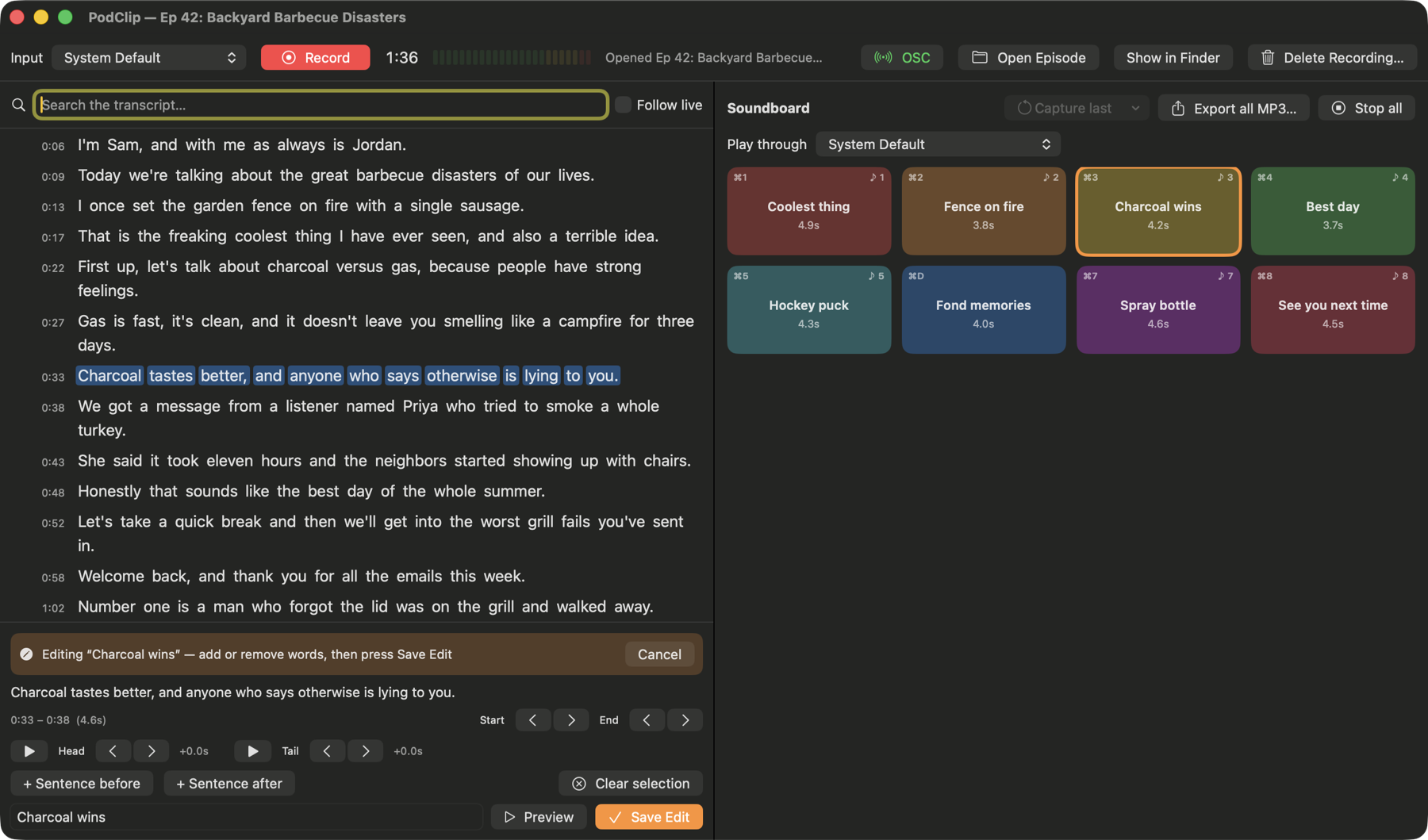
The PodClip window: a live transcript on the left and a colour-coded soundboard of clips on the right

From "did you hear that?" to a button in seconds

You say "That is the freaking coolest thing I have ever seen." Twenty minutes later you type freaking, click the sentence, press Clip, and it's on your soundboard.

Record

Pick any input, from a USB interface or mixer to a virtual device, and press Record. Audio streams straight to disk, so a long show never fills your memory.

Search

Words appear as you speak, each with a timestamp. Search the transcript mid-show, even for multi-word phrases, and jump to the exact moment.

Clip

Click a word to select its sentence, nudge the start and end, preview it, and press Clip. Or just hit Capture last to grab the last 30 seconds in one action.

Play

Fire clips from the soundboard, your keyboard, a MIDI pad, a Stream Deck or over OSC. Clips overlap, light up while playing, and go out through the output you choose.

Built for the way a show actually runs

Live transcription, instant clips and a soundboard you can trigger every way a host might want to.

Search what was said, while it's still being said

Live, word-timed transcription uses Apple's on-device speech model. Search while you record and every match is highlighted and listed with its time and context.

Click a word to select its sentence, Shift-click to extend, or Option-click for a single word.
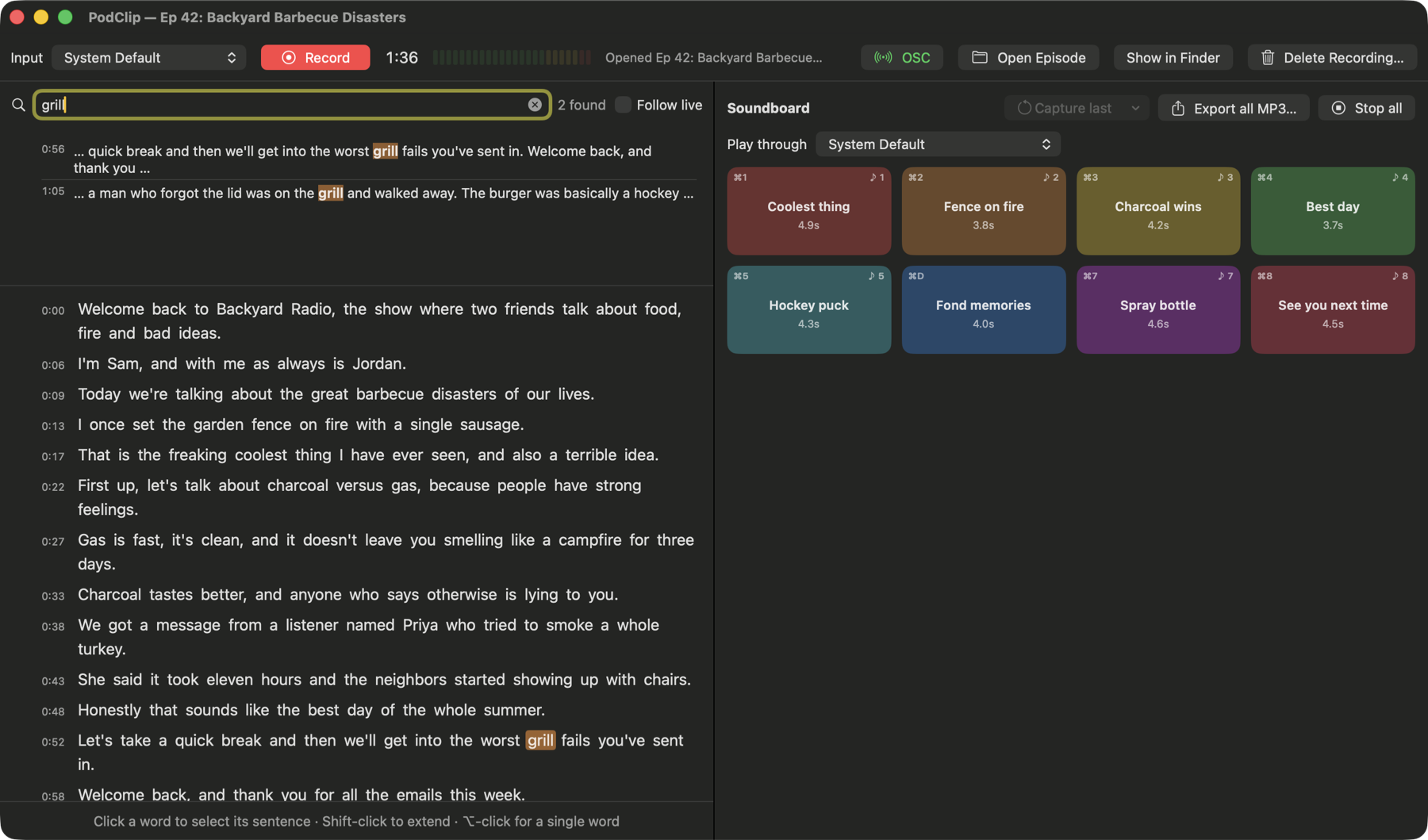
Searching the transcript for the word grill, with matches highlighted

Trim it exactly, then press Clip

Fine-tune with Start, End, Head and Tail, add a sentence before or after, and preview the clip before it goes on the board.

Made a mistake? Edit a saved clip: its words light up again so you can add or remove some and save it back into the same slot.

Editing a saved clip, with its words highlighted in the transcript and trim controls underneath
Recording

Record anything, lose nothing

  • Any input: USB interfaces, mixers, virtual devices or the built-in mic, with a live level meter.
  • Streamed to disk: about 345 MB for a one-hour episode.
  • Capture last N seconds as a clip in one action: from the soundboard, a Stream Deck key, Companion or OSC.
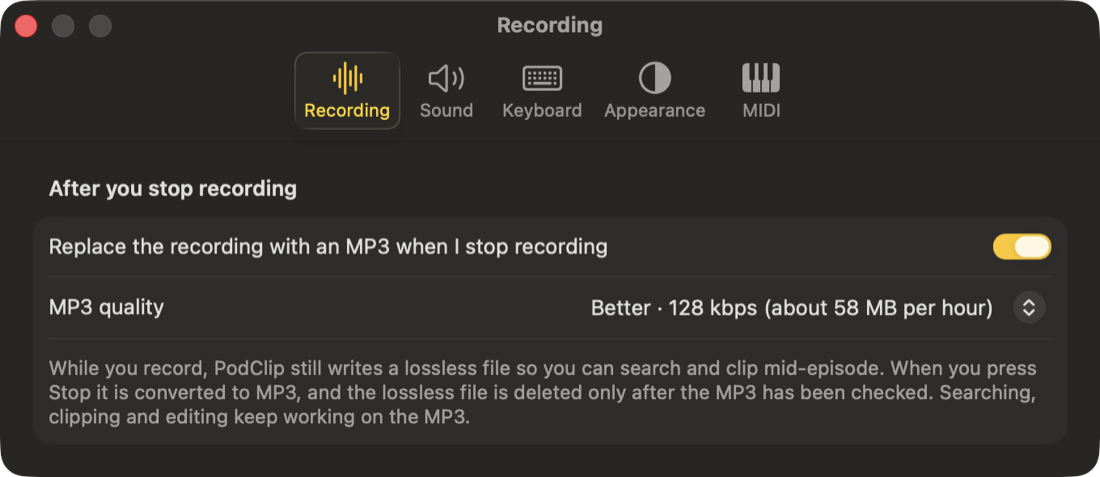
  • Optional MP3: replace the recording with an MP3 when you stop, to save space.
Pre-recorded audio

Transcribe a file you already have

  • Open Audio File takes MP3, M4A, WAV, AIFF, CAF or FLAC.
  • Fast: on Apple silicon an hour of audio takes about a minute.
  • A normal episode: search it and clip it just like a recording.
  • The audio is copied into the episode, so moving the original does no harm.
Soundboard

Pads that behave

  • Instant, overlapping playback with pause and resume.
  • When clicked again: restart, stop, or pause and resume, globally or per pad.
  • Drag to reorder pads, color them, and select many at once.
  • New clips first: optionally put each new clip in position 1.
  • Hold Esc to stop everything that's playing.
Output

Send sound where you want it

  • Play through any output device, like a separate bus so clips never bleed into your mic.
  • Preview through your headphones to audition a clip without it going out on air.
  • Switch devices mid-show and every pad follows.
Sharing

Take your clips with you

  • Drag a pad to the Desktop, Finder or another app to hand over an MP3 named after the clip.
  • Export one clip or all clips as MP3.
  • SRT and WebVTT transcript export for captions.
Episodes

Every show is its own folder

  • Open Episode reloads a past show with its transcript, search, clips and soundboard.
  • Rename, duplicate or delete episodes from a right-click.
  • Export and import a whole episode as a single .podclip file.
  • Delete Recording to free disk space but keep the clips.

Make it yours

Keys, MIDI pads, appearance and more, all in Settings.

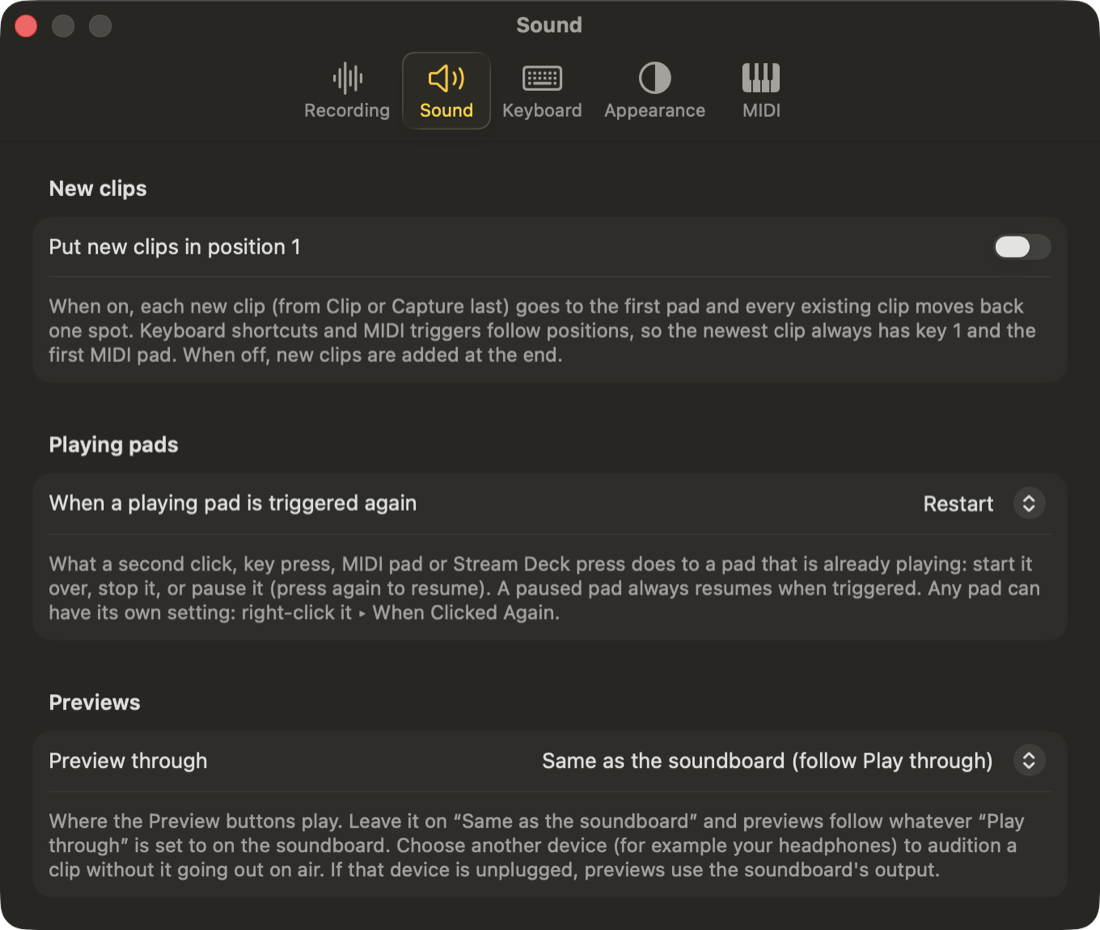
Sound settings
Sound: where new clips go, what a second press does, and where previews play.
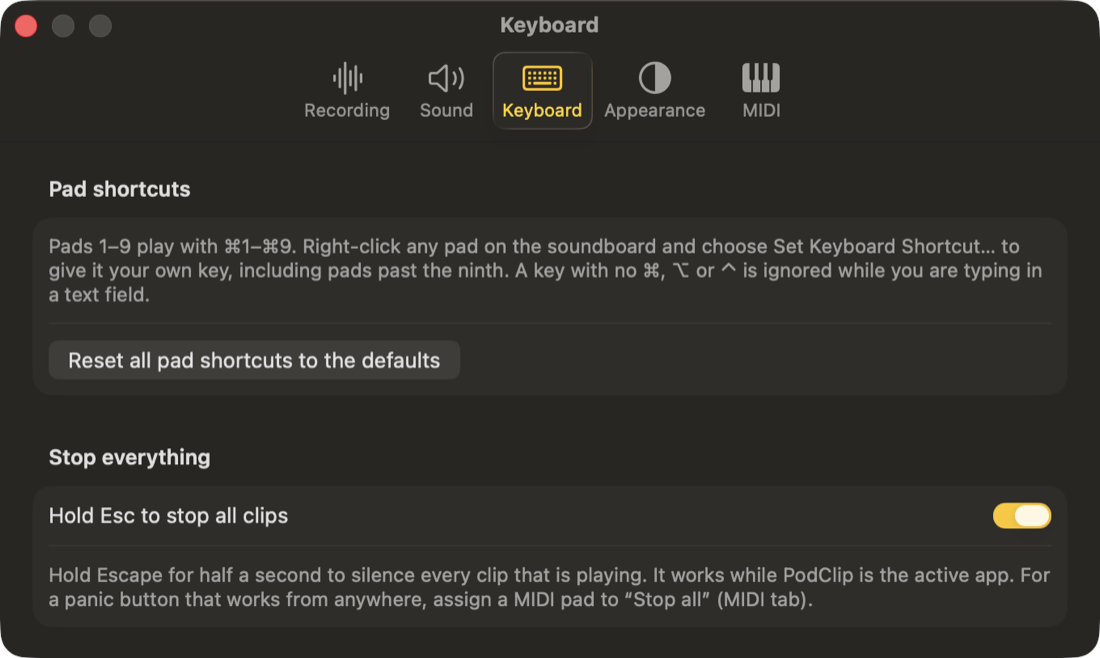
Keyboard settings
Keyboard: your own shortcut for any pad, and Hold Esc to stop all.
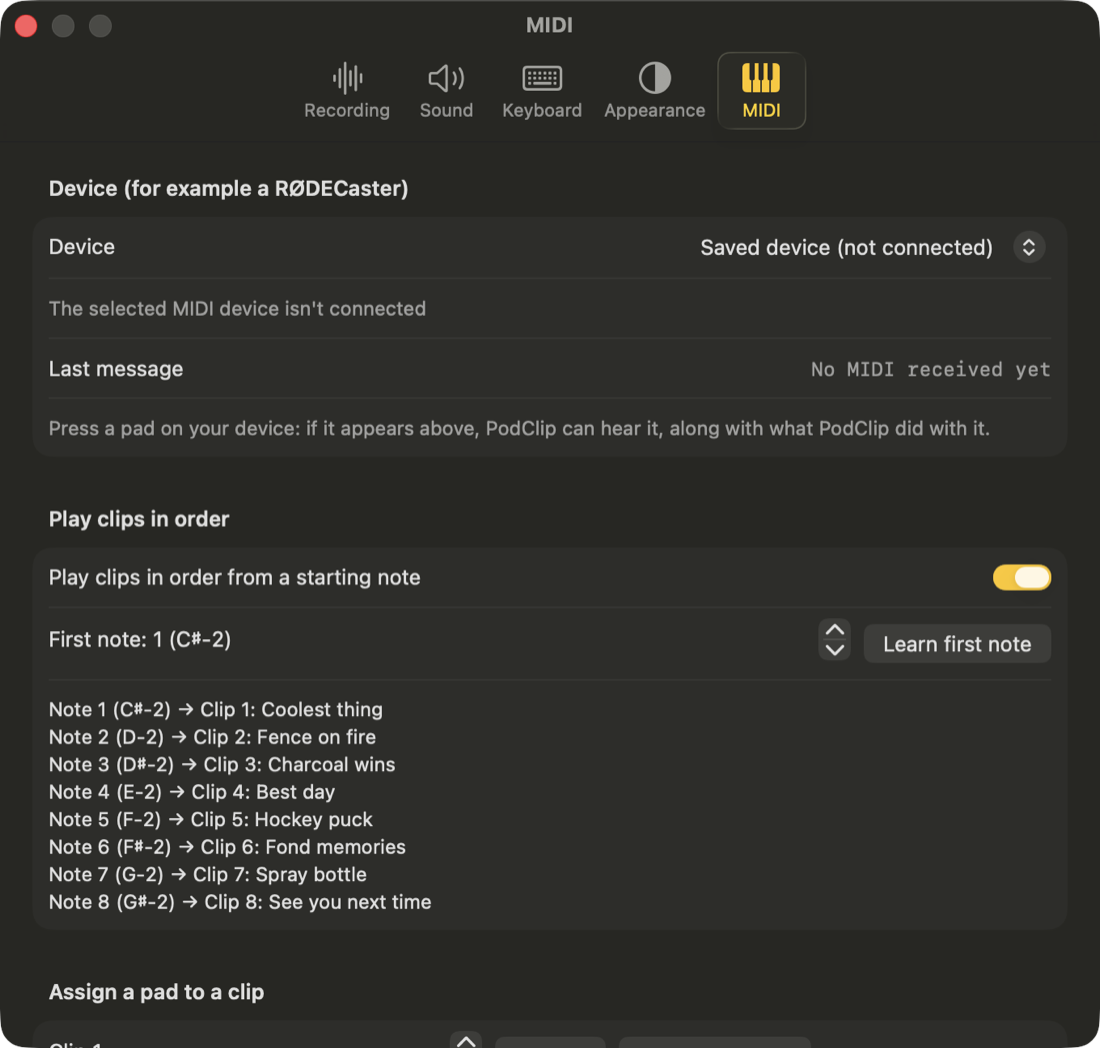
MIDI settings
MIDI: learn pads and buttons from a RØDECaster or any controller.
Recording settings
Recording: convert to MP3 when you stop, at the quality you choose.
Appearance settings
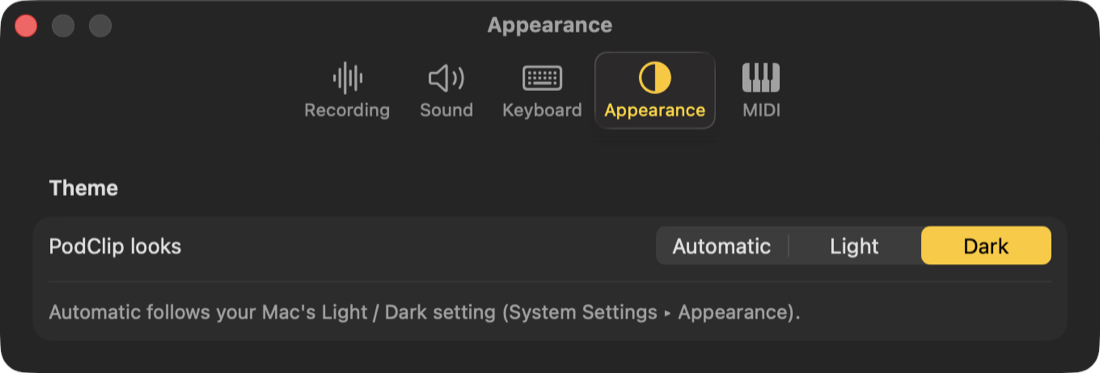
Appearance: Light, Dark or Automatic.

Trigger it from anywhere

Run your show from a control surface. PodClip speaks OSC and comes with a Stream Deck plugin and a Bitfocus Companion module.

MIDI

Pads and buttons

  • Learn a pad for any clip, or play clips in order from a starting note.
  • Notes, controller buttons and program changes all work, and Stop all can be assigned too.
Stream Deck

Keys that show state

  • Clip keys light up while playing and show when paused.
  • Capture Last, Back to Live and Stop all are keys too.
Companion + OSC

Scriptable

  • Presets, feedbacks and variables for Bitfocus Companion.
  • A documented OSC protocol for anything else.
Keyboard

Every pad, any key

  • ⌘1 to ⌘9 by default, or choose your own key for any pad.
  • ⌘L jumps back to the live episode.
The .podclip episode file icon

.podclip episode files

Export a whole episode (recording, transcript, clips, colors and name) as one file. Double-click it on any Mac with PodClip to import it.

Private by design

Transcription uses Apple's on-device speech model. Your audio and text never leave your Mac, and PodClip has no account and no cloud. The only thing it asks the internet is whether a newer version exists.

Get PodClip

Download the latest version, straight from GitHub.

Download the latest release

Requirements

Installing

  1. Download PodClip.dmg (the button above) and double-click it to open the installer.
  2. Drag PodClip onto the Applications folder in the window that opens, then eject the disk image.
  3. Open it. PodClip is signed and notarized by Apple, so it opens with a normal double-click. The first time, macOS may ask "PodClip is an app downloaded from the Internet. Are you sure you want to open it?" Click Open.
  4. Allow the microphone and speech recognition when asked, then press Record.

Read the Help guide

Special pre-release pricing

PodClip is in pre-release, and early buyers get special pricing. Contact Andy to buy:

andy@lehmancreations.com

Email Andy